
Best Monitors for MacBook (2026): 4 Brilliant Picks for Air and Pro
Text on a 1440p screen looks soft next to a MacBook’s display. These 4K and 5K monitors keep macOS sharp, and most charge your laptop over one USB-C cable.
We earn a commission if you buy through our links, at no extra cost to you. As an Amazon Associate, we earn from qualifying purchases. How we make money.
The best monitors for MacBook share two traits: high pixel density and a single USB-C cable that does everything. Plug a MacBook into a cheap 1440p monitor and you’ll notice it straight away: text looks a little fuzzy compared with the laptop’s own screen. macOS is designed for high pixel density, so a 27-inch 4K or 5K display is the real sweet spot.

The other thing to look for is USB-C with power delivery. One cable then carries video, data and charging, and your desk stays clean. We compared panel specs, ports, charging wattage and owner feedback to pick four displays for MacBook Air and MacBook Pro owners at different budgets.
The best monitor for MacBook for most people is the Dell 27 Monitor S2725QC because it pairs a sharp 4K panel with 120Hz and one-cable USB-C charging. If you edit photos or video, get the ASUS ProArt PA279CRV. If you want a screen that matches your MacBook exactly, the Apple Studio Display is the premium choice.
Best Monitors for MacBook at a Glance

- 4K at up to 120Hz
- USB-C with 65W charging
- 99% sRGB IPS panel

- Factory calibrated, Delta E under 2
- 99% DCI-P3 and Adobe RGB
- 96W USB-C charging
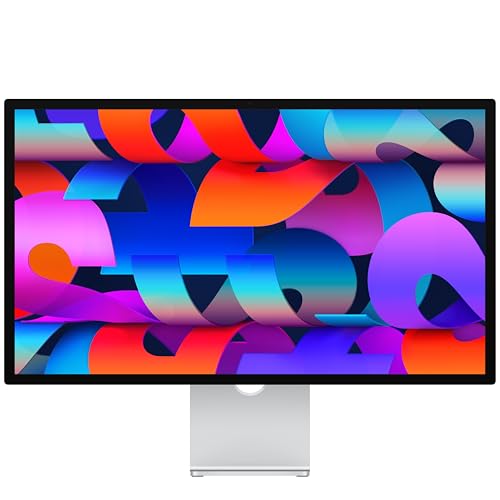
- 27-inch 5K Retina
- Thunderbolt 5 ports
- 12MP Center Stage camera
Side-by-Side Comparison
| Product | Price | ||
|---|---|---|---|
 | Best Overall Dell 27 Monitor S2725QC | $349.97Price as of Nov 3, 2026 12:46 pm EST ⓘ | Check Price |
 | Best for Photo Editing ASUS ProArt PA279CRV | $419.71Price as of Nov 3, 2026 12:46 pm EST ⓘ | Check Price |
 | Premium Pick Apple Studio Display | $1,549.99Price as of Nov 3, 2026 12:59 pm EST ⓘ | Check Price |
 | Budget 4K LG 27UP850K-W UltraFine 4K | $349.99Price as of Nov 3, 2026 12:59 pm EST ⓘ | Check Price |
1. Dell 27 Monitor S2725QC: Best Monitor for MacBook Overall
Dell 27 Monitor S2725QC
A sharp, smooth 4K screen at a fair price
- Size: 27-inch, 3840 x 2160
- Refresh rate: Up to 120Hz
- Panel: IPS, 99% sRGB
- USB-C: Up to 65W charging
- Pixel density: 163 PPI
Pros
- 120Hz makes scrolling feel smooth
- One-cable setup with USB-C
- Built-in speakers are better than usual
Cons
- 65W may not keep a 16-inch MacBook Pro full under heavy load
- sRGB rather than wide P3 color
Most 4K monitors run at 60Hz. The S2725QC goes up to 120Hz, which you notice every time you scroll a web page or move a window. Text is crisp at 163 pixels per inch, and USB-C carries video plus up to 65W of charging.
That 65W is enough for MacBook Air and the 14-inch MacBook Pro in everyday use. If you push a 16-inch Pro hard, the battery may slowly drain while plugged in.
Who should skip it? Anyone who needs wide-gamut color for print or video work. The panel targets sRGB rather than the P3 color space your MacBook uses, so the ASUS is the better tool for that job. For writing, coding, spreadsheets and browsing, it is one of the best monitors for MacBook owners at this level.
2. ASUS ProArt PA279CRV: Best for Photo and Video Editing
ASUS ProArt PA279CRV
Accurate color straight out of the box
- Size: 27-inch 4K IPS
- Color: 99% DCI-P3, 99% Adobe RGB
- Accuracy: Calman Verified, Delta E under 2
- USB-C: 96W charging
- Extras: Daisy chain, height adjust
Pros
- Factory calibrated for color work
- 96W covers every MacBook
- Fully adjustable stand
Cons
- 60Hz only
- Overkill for office work
If you edit photos or video, color accuracy matters more than refresh rate. The ProArt PA279CRV is calibrated at the factory to a Delta E under 2 and covers 99% of both DCI-P3 and Adobe RGB, so what you see is close to what you’ll print or publish.
The 96W USB-C port covers every current MacBook, including the 16-inch Pro, and the stand adjusts for height so you can line the screen up with your eyes. Daisy chaining is listed, but macOS does not support DisplayPort MST, so on a Mac a second monitor needs its own connection.
Skip it if you mostly write and browse. The 60Hz panel and creator features add cost without much benefit for office work, and the Dell feels smoother day to day.
3. LG 27UP850K-W UltraFine 4K: Best Budget 4K Monitor

LG 27UP850K-W UltraFine 4K
Wide color and 90W charging for less
- Size: 27-inch 4K IPS
- Color: 95% DCI-P3 (typ.)
- HDR: VESA DisplayHDR 400
- USB-C: Up to 90W
- Ports: DP, 2x HDMI, 2x USB
Pros
- 90W USB-C is plenty for most MacBooks
- Wide P3 color
- Height, tilt and pivot stand
Cons
- 60Hz
- HDR400 is entry-level HDR
The LG covers most of what Mac owners want: 4K, wide P3 color, and 90W charging over USB-C. It’s limited to 60Hz, which is fine for work but less smooth.
Its DisplayHDR 400 rating is entry level, so do not buy it for HDR movies. You can read what each tier means on the VESA DisplayHDR site. The stand adjusts for height, tilt and pivot, which helps if you want to rotate the screen for reading long documents or code.
4. Apple Studio Display: Best Premium Monitor for MacBook
Apple Studio Display
The one that matches your MacBook perfectly
- Size: 27-inch 5K Retina
- Brightness: 600 nits
- Ports: 2x Thunderbolt 5, 2x USB-C
- Camera: 12MP Center Stage, Desk View
- Audio: Six speakers, Spatial Audio
Pros
- 5K looks exactly as sharp as a MacBook screen
- Excellent camera, mics and speakers
- Thunderbolt 5 and laptop fast charging
Cons
- Very expensive
- Few picture settings outside macOS
The Studio Display is expensive, but nothing else feels as native on a Mac. At 5K, macOS renders at the same sharpness as your MacBook’s built-in screen. The camera, microphones and six speakers also mean you can skip a separate webcam and speakers.
According to Apple’s tech specs, the 5K panel runs at 218 pixels per inch with 600 nits of brightness. It has two Thunderbolt 5 ports (one upstream to your Mac, one downstream) plus two USB-C ports, and the upstream port provides 96W of charging. This listing is the standard glass version with the tilt-adjustable stand.
Skip it if you also use a Windows PC or want lots of picture controls, since most settings live inside macOS. It is also a lot of money for a single display, and the Dell gets you most of the way for everyday work.
How to Choose the Best Monitors for MacBook
- External display limits. Some MacBook Air models support only one external display. Check Apple’s tech specs for your model before buying two monitors.
- Charging wattage. 65W is fine for Air and 14-inch Pro. Look for 90W+ for a 16-inch Pro.
- Scaling. On 4K at 27 inches, the “looks like 2560 x 1440” setting gives a good balance of size and sharpness.
Pixel density matters more than resolution
macOS looks its best at roughly 220 pixels per inch, which is why Apple’s own screens use that density. A 27-inch 4K monitor sits at 163 PPI and looks sharp, a 27-inch 5K matches the Retina look, and a 27-inch 1440p monitor drops to about 109 PPI, where text starts to look soft. If sharp text is your priority, pick pixel density first and everything else second.
Screen size
27 inches is the sweet spot for a 4K monitor for MacBook use. A 24-inch 4K is even sharper (about 184 PPI) but gives you less room. A 32-inch 4K drops to about 138 PPI, which is fine from a little farther back but noticeably softer up close.
Refresh rate
Most 4K monitors run at 60Hz. If you are used to the smooth scrolling on a MacBook Pro, a 120Hz panel like the Dell feels much closer to the built-in screen. Recent Macs support high refresh rate external displays, but check your model and use a cable rated for the bandwidth.
USB-C, Thunderbolt and charging
A USB-C monitor that supports DisplayPort Alt Mode and Power Delivery can carry video, USB data and charging over one cable. Thunderbolt adds more bandwidth for docks and daisy chained devices, but you do not need it for a single 4K screen. Our USB-C vs Thunderbolt vs USB4 explainer covers the differences. Match the charging wattage to your laptop: 65W suits MacBook Air and most 14-inch Pro use, while 90W or more is better for a 16-inch Pro.
Color: sRGB vs P3
Every recent MacBook screen covers the P3 color space. Most web content is sRGB, so an sRGB monitor is fine for everyday work. If you edit photos or video, a wide-gamut P3 monitor keeps colors consistent between your laptop and your desk display.
Need more ports for your setup? See the best USB-C hubs for MacBook, and read how to choose a monitor for a deeper guide.

4K vs 5K vs 1440p: Which Resolution Suits a Mac?
Resolution is the spec that matters most when you shop for the best monitors for MacBook use. Here is how the common 27-inch options compare.
| 27-inch resolution | Pixel density | How text looks in macOS | Best for |
|---|---|---|---|
| 1440p (2560 x 1440) | About 109 PPI | Visibly softer than a MacBook screen | Tight budgets, gaming |
| 4K (3840 x 2160) | About 163 PPI | Sharp, with slight softness at scaled settings | Most people |
| 5K (5120 x 2880) | About 218 PPI | Matches the Retina look | Design, photo work, text-heavy jobs |
Why the slight softness on 4K? At 27 inches, the popular “looks like 2560 x 1440” setting asks macOS to draw a 5K image and shrink it to fit 4K pixels. It still looks good, and most people never notice. A 5K panel avoids the scaling step entirely, which is the main reason the Studio Display looks so crisp.
For most buyers, a 27-inch 4K monitor is the best value. Step up to 5K only if you stare at text or photos all day and the budget allows.

Best Monitors for MacBook by Use
Office work and coding: the Dell S2725QC. Sharp 4K text, 120Hz scrolling and one-cable charging cover a typical workday, and the built-in speakers handle calls in a pinch.
Photo and video editing: the ASUS ProArt PA279CRV. Factory calibration and wide P3 and Adobe RGB coverage make it the safer choice when color has to be right.
Tighter budget with wide color: the LG 27UP850K-W. It gives you P3 color and 90W charging, and it is the best monitor for MacBook Pro 16-inch owners who want enough charging power without a premium display.
Design studios and Mac purists: the Apple Studio Display. 5K Retina sharpness, a 12MP Center Stage camera and Thunderbolt 5 make it the most complete single-cable desk setup for a Mac.
Common Mistakes When Buying a Monitor for MacBook
Buying 1440p at 27 inches. It looks fine on Windows, but macOS text appears soft at that density. Pay a little more for 4K.
Ignoring charging wattage. A monitor that delivers too little power can leave a 16-inch MacBook Pro slowly draining under load.
Planning two screens on the wrong Mac. Some MacBook Air models support only one external display, so check Apple’s specs first.

Setup Tips for Using a Monitor With Your MacBook
- Use a good cable. The cable in the box is usually the right one. A cheap charge-only USB-C cable may not carry video at all.
- Set scaling in System Settings. Open Displays, choose your monitor and pick the size that suits you. “Looks like 2560 x 1440” is a good start on a 27-inch 4K screen.
- Arrange your displays. In the same menu, drag the screen icons so they match their real positions, which makes moving the cursor between them feel natural.
- Closed-lid use needs power. To run a MacBook with the lid closed, connect it to power and use an external keyboard and mouse.
- Raise the screen. The top of the monitor should sit at or slightly below eye level. If you also use the laptop screen, one of our best laptop stands brings it up to a similar height.
- Light your desk. A monitor light bar reduces glare and eye strain without taking up desk space.
Frequently Asked Questions
What are the best monitors for MacBook Air?
The Dell S2725QC and LG 27UP850K-W are both great matches. Their USB-C charging covers any MacBook Air, and 4K at 27 inches looks sharp in macOS. Before buying two monitors, check how many external displays your Air model supports in Apple’s tech specs.
Is 4K enough for a MacBook, or do I need 5K?
4K is enough for most people. A 27-inch 4K screen looks sharp and costs far less than 5K. 5K is a luxury that pays off mainly for designers, photographers and anyone who reads small text all day.
Can a monitor charge my MacBook?
Yes, if it has USB-C with Power Delivery. All four picks in this guide charge a MacBook over the same cable that carries video. Match the wattage to your laptop so the battery does not drain under heavy load.
Do I need a Thunderbolt monitor for my Mac?
No. A standard USB-C monitor with DisplayPort Alt Mode works with every recent MacBook. Thunderbolt mainly helps if you want to chain fast storage or docks through the monitor.
Why does my external monitor look blurry on my Mac?
Usually it is low pixel density, such as a 27-inch 1440p or a 32-inch 1080p screen. Check that you are using the monitor’s native resolution or a scaled setting in System Settings, and that the cable supports the full resolution.
The bottom line
Among the best monitors for MacBook in 2026, the Dell S2725QC is the best mix of sharpness, smoothness and price. Creative pros should get the ASUS ProArt PA279CRV, and if budget isn’t a concern, the Studio Display is the most Mac-like screen you can buy.
Check Dell S2725QC price
