
Best USB-C Hubs for MacBook (2026): 4 Essential Picks for Every Budget
The best USB-C hubs for MacBook Air and Pro, from a pocket-size travel hub to an 18-port Thunderbolt dock, plus display limits and setup tips.
We earn a commission if you buy through our links, at no extra cost to you. As an Amazon Associate, we earn from qualifying purchases. How we make money.

Finding the best USB-C hubs for MacBook matters more than it sounds. Modern MacBooks are thin, fast and quiet, but they come with very few ports. If you want to connect an external monitor, a USB-A flash drive, an SD card and Ethernet at the same time, you need a USB-C hub or dock.
We compared the most popular hubs and docks on port selection, display support, charging pass-through, build quality and long-term owner feedback. Below are the best USB-C hubs for MacBook Air and MacBook Pro, plus what to check before you buy.
Best USB-C Hubs for MacBook at a Glance

- 4K 60Hz HDMI output
- 85W pass-through charging
- Ethernet + SD card readers
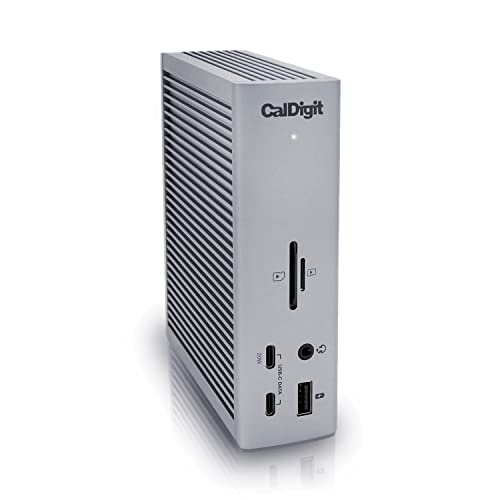
- 18 ports in one dock
- 98W laptop charging
- 2.5GbE Ethernet

- Slim aluminum design
- 100W pass-through charging
- HDMI, USB and SD card reader
Comparison Table
| Product | Price | ||
|---|---|---|---|
 | Best Overall Anker 555 USB-C Hub (8-in-1) | $49.99Price as of Nov 4, 2026 12:06 pm EST ⓘ | Check Price |
 | Premium Pick CalDigit TS4 Thunderbolt 4 Dock | $379.99Price as of Nov 4, 2026 12:06 pm EST ⓘ | Check Price |
 | Best for Travel Satechi USB-C Hub Pro Slim | $68.80 | Check Price |
 | Best Budget UGREEN 5-in-1 USB-C Hub | $11.98 | Check Price |
1. Anker 555: Best USB-C Hub for MacBook Overall
Anker 555 USB-C Hub (8-in-1)
The best all-round hub for most MacBook owners
- Ports: 8
- Video: HDMI up to 4K 60Hz
- Charging: Up to 85W pass-through
- Network: Gigabit Ethernet
- Cards: SD + microSD
- Data: Up to 10Gbps
Pros
- Covers almost every port you need
- Reliable pass-through charging
- Compact enough for a laptop bag
Cons
- Only one external display
- Gets warm under heavy use
The Anker 555 is our top choice among the best USB-C hubs for MacBook because it hits the sweet spot for most people. With a single USB-C cable, you get 4K 60Hz HDMI for an external display, 10Gbps USB-A and USB-C ports for accessories, both SD and microSD card slots, Ethernet, and up to 85W pass-through charging to keep your MacBook powered.
It is a great fit for students, remote workers and photographers who move between a desk and the couch. Anker also has a strong track record for build quality and customer support.
2. CalDigit TS4: Best Thunderbolt Dock for MacBook Pro
CalDigit TS4 Thunderbolt 4 Dock
A full desktop docking station for power users
- Ports: 18
- Connection: Thunderbolt 4 (40Gb/s)
- Charging: Up to 98W
- Network: 2.5 Gigabit Ethernet
- Displays: Up to 8K or dual 6K
- Power: External power supply
Pros
- Huge port selection
- Fast Thunderbolt bandwidth
- Excellent reputation for stability
Cons
- Expensive
- Large; meant to stay on a desk
If your MacBook lives on a desk most of the day, a Thunderbolt dock is a big upgrade over even the best USB-C hubs for MacBook. The CalDigit TS4 turns one cable into a complete workstation: monitors, fast storage, Ethernet, audio and plenty of USB ports, while charging your laptop at the same time.
It costs much more than a hub, but for creators and professionals who plug in every day, the convenience is worth it.
3. Satechi Pro Slim: Best Travel Hub for MacBook
Satechi 7-in-1 USB-C Hub Pro Slim
A sleek hub that sits flush against your MacBook
- Video: HDMI up to 4K
- Charging: Up to 100W pass-through
- USB: 2x USB 3.2 Gen 2 (10Gbps)
- Cards: SD card reader
- Build: Aluminum
- Fits: MacBook Air / Pro
Pros
- Clean, cable-free look
- Matches MacBook finishes
- Very portable
Cons
- Fit depends on your MacBook model and case
- Fewer ports than desk hubs
Satechi’s 7-in-1 Pro Slim hub attaches directly to the side of your MacBook, so there is no dangling cable. It is a favorite with travelers and anyone who wants their setup to look tidy.
4. UGREEN 5-in-1: Best Budget USB-C Hub

UGREEN 5-in-1 USB-C Hub
The essentials at a low price
- Ports: 5
- Video: HDMI up to 4K
- USB: 1x 5Gbps + 2x USB 2.0
- Charging: 100W pass-through
- Connection: Single USB-C
- Build: Aluminum shell
Pros
- Very affordable
- Small and light
- Good for a monitor + a few accessories
Cons
- No Ethernet or card reader
- Only one fast USB-A port
If you only need HDMI and a few USB-A ports, there is no need to spend more. The cheapest of the best USB-C hubs for MacBook is still a big upgrade over carrying single-port dongles. The UGREEN 5-in-1 USB-C hub covers the basics and is small enough to leave in your bag permanently.
How to Choose a USB-C Hub for Your MacBook
1. Know your MacBook’s display limits
Base M1 and M2 MacBook Air models officially support only one external display. Newer models support more, but the exact number depends on the chip. A hub with two HDMI ports will not add extra screens if your Mac cannot drive them. Check Apple’s tech specs page for your model before you buy.
2. Hub vs. dock
- Hubs are small, bus-powered and portable. They are ideal for travel and light desk use.
- Docks have their own power supply, more ports and more bandwidth. They are ideal for a permanent desk setup.
3. USB-C vs. Thunderbolt
All of these use the same USB-C shaped connector, but the speed behind it varies a lot. Read our explainer on USB-C vs. Thunderbolt vs. USB4 to understand the difference.
4. Pass-through charging
Most hubs let you plug your charger into the hub. Some power is used by the hub itself, so your MacBook receives slightly less than the charger’s rating. Look for 85W–100W pass-through for most MacBooks.
USB-C Hub vs. Thunderbolt Dock: Which Do You Need?

Before you shop the best USB-C hubs for MacBook, decide between a hub and a dock. Both plug into the same port, but they are built for different jobs. A hub is a small adapter you can throw in a bag. A dock is a desktop box with its own power brick that turns one cable into a full workstation.
| USB-C hub | Thunderbolt dock | |
|---|---|---|
| Price | Low to mid | High |
| Power | Draws from your laptop or charger | Own power supply, charges the laptop |
| Ports | 4 to 9 | 10 to 18 |
| Bandwidth | Usually 5–10 Gbps | Up to 40 Gbps or more |
| Best for | Travel, light desk use | Permanent desk setups |
If you mostly work from a café or move between rooms, a hub is the right call. If your MacBook spends all day on a desk next to a monitor, a dock saves you from plugging in four cables every morning.
How Many External Displays Can Your MacBook Run?
Display support is the most common reason people return a hub, even one of the best USB-C hubs for MacBook. A hub cannot add display support your Mac does not already have. Base M1 and M2 MacBook Air models support one external display. Later models raised that limit, and MacBook Pro models with Pro or Max chips support more. Check the official Apple tech specs for your exact model before you buy a dual-HDMI hub.
- One external monitor: any hub in this guide works.
- Two monitors: confirm your Mac supports it, then use a Thunderbolt dock or a hub that lists macOS dual-display support.
- High refresh rates: look for HDMI 2.1 or DisplayPort over Thunderbolt; many cheap hubs cap at 4K 30Hz.
Setup Tips for the Best USB-C Hubs for MacBook

- Plug the charger into the hub, not the MacBook, so the hub gets enough power for all its ports.
- Use the short cable that came with the hub. Long extension cables cause flicker and dropouts.
- Update macOS. Display and USB fixes often arrive in point releases.
- Keep the hub out of direct sunlight and off soft surfaces; hubs run warm under load.
Common USB-C Hub Problems (and Fixes)
My monitor flickers or goes black
Try another HDMI cable first, then lower the refresh rate in System Settings → Displays. Cheap HDMI cables are the usual cause.
My MacBook charges slowly through the hub
The hub keeps some power for itself. Use a charger rated 20–30W higher than your MacBook needs, for example a 100W charger with an 85W pass-through hub.
An external drive keeps disconnecting
Bus-powered drives can draw more power than a small hub provides. Plug the charger into the hub or use a powered dock.
Which Ports Do You Actually Need?
The best USB-C hubs for MacBook are the ones that match how you work, not the ones with the longest spec list. Start with the devices you plug in every week, then add one spare port.
Students and everyday users
An HDMI port for a TV or classroom projector, two USB-A ports for a flash drive and a mouse, and pass-through charging. A 5-in-1 hub covers this for very little money.
Photographers and video editors
Full-size SD and microSD readers save a lot of time, and a 10Gbps USB-C data port makes offloading footage to an external SSD much faster. The Anker 555 and Satechi Pro Slim both include card readers.
Remote workers
Gigabit Ethernet keeps video calls stable when Wi-Fi is busy. Add an HDMI port for a monitor and a charger port, and you have a full desk setup from one cable.
Power users with a permanent desk
If you connect two monitors, fast storage, audio gear and a webcam every day, a Thunderbolt dock like the CalDigit TS4 is worth the money. It also charges your MacBook and frees up both of its ports.
Our Buying Checklist
Run through this list before you add any of the best USB-C hubs for MacBook to your cart:
- Display support: does your MacBook model support the number of monitors you want?
- Pass-through wattage: 85W–100W keeps most MacBooks charged while the hub is in use.
- Data speed: look for 10Gbps ports if you move large files.
- Cable length: a short built-in cable is tidy; a detachable cable is easier to replace.
- Build: aluminum shells spread heat better than plastic ones.
- Warranty: check the warranty length on the listing before you buy.
How Much Should You Spend?
| Budget | What you get | Example |
|---|---|---|
| Budget | HDMI, a few USB-A ports, pass-through charging | UGREEN 5-in-1 |
| Mid-range | Card readers, Ethernet, 10Gbps ports | Anker 555, Satechi Pro Slim |
| Premium | Thunderbolt bandwidth, many ports, laptop charging | CalDigit TS4 |
Most people land in the middle tier. Spending more only makes sense if you work at a desk all day and plug in several high-bandwidth devices.
USB-C Hub Power Delivery and Heat, Explained
Pass-through charging is one of the most useful features on any hub, and also one of the most misunderstood. When you plug your MacBook charger into the hub, the hub keeps some of that power for itself and its ports, then passes the rest to your Mac. The best USB-C hubs for MacBook list both the input rating and how much actually reaches the laptop.
Use a strong enough charger
Your Mac will charge more slowly through a hub than direct from the wall, especially with a lower-watt charger. Use a charger at least as powerful as the one Apple ships with your model. If you run a MacBook Pro under heavy load, connecting the charger straight to the Mac is still the fastest option.
Expect some warmth
A usb-c hub for macbook that drives a display, an Ethernet port and charging at the same time gets warm. That is normal. Give the hub some air instead of tucking it under a laptop stand or a pile of papers, and avoid wrapping it around the cable.
Plug things in the right order
If a display or drive acts up, connect the hub to power first, then to the Mac, then plug in your accessories. Unplugging and reconnecting the hub fixes most flaky connections. If problems continue, try a different USB-C port on the Mac, since some ports share bandwidth or power on certain models.
Keep firmware and macOS updated
A thunderbolt dock in particular sometimes gets firmware updates from the maker, and macOS updates often improve display and USB behavior. Check the manufacturer support page for your hub after a big macOS release.
Mind the cable length
Hubs with a short built-in cable stay compact in a bag, but on a desk they can dangle from the port and strain it. If your Mac sits on a stand, a hub with a longer cable or a detachable cable puts less stress on the connector and keeps your setup tidier.
Know when a dock is the better buy
If you plug in a charger, a monitor and several accessories every day, a thunderbolt dock with its own power supply takes the load off the laptop and gives you one cable to connect when you sit down. If you mostly need a spare USB-A port and an SD card reader on the go, a compact usb-c hub for macbook is cheaper and easier to carry. Pick the one that matches how often your setup stays in one place, and any of the best usb-c hubs for macbook above will cover the basics.
Frequently Asked Questions
Do USB-C hubs work with MacBook Air?
Yes. Any standard USB-C hub works with MacBook Air. Just remember that some Air models support only one external display.
Can a USB-C hub damage my MacBook?
A hub from a reputable brand is safe. Avoid unbranded, very cheap hubs, as poor power regulation can cause disconnects or overheating.
What is the best USB-C hub for MacBook Air?
For most MacBook Air owners, the Anker 555 is the best balance of ports and price. If you only need HDMI and USB-A, the UGREEN 5-in-1 costs much less.
Why does my hub get hot?
Hubs that handle video, data and charging at once naturally get warm. Slight warmth is normal, but if a hub becomes too hot to touch, stop using it.
Do the best USB-C hubs for MacBook work with iPad too?
Yes. Any USB-C iPad works with these hubs for HDMI, USB storage and charging. Card readers and Ethernet also work on recent iPadOS versions.
Can I use a USB-C hub with a Windows laptop?
Yes. USB-C hubs are not Mac-only. Display support still depends on your laptop, so check that its USB-C port supports DisplayPort Alt Mode.
The bottom line
Of all the best USB-C hubs for MacBook we looked at, the Anker 555 USB-C Hub is the best balance of ports, reliability and price. If you want a full desk setup with one cable, the CalDigit TS4 is worth the investment.
See the Anker 555 on Amazon
